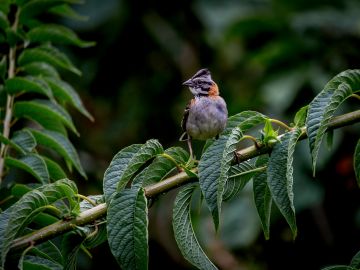
How to Use iNaturalist on Your Adventure
As part of our Thriving Nature, Thriving People plan, Exodus has partnered with iNaturalist, one of the world’s leading citizen science platforms. Each observation supports a global biodiversity database – directly contributing to real conservation science while deepening your connection to the natural world.

What is iNaturalist?
iNaturalist is a free website and app that helps users identify the plants and animals around them while generating data for science and conservation. Users can document wildlife by taking photos or recordings. The photographs and recordings will then be included within iNaturalist’s own global biodiversity database.
The database is accessible to researchers, naturalists, scientists and environmental conservationists worldwide. iNaturalist observations are regularly used to support their understanding of ecosystems and enable them to identify how to better support the protection of species and their habitats.
How to Use iNaturalist on Your Exodus Adventure
Getting started
1. Download the iNaturalist app (iOS/Android) and create an account.
2. Go to Menu → Projects and search ‘Exodus Adventure Travels’.
3. Find the ‘project’ related to your trip and join. If iNaturalist is not being promoted on your particular trip, you can join the Exodus Adventure Travels: Trip Collection project.
4. Check location and tap ‘Save’. If you’re online, the app will automatically identify the plant, insect or animal.

Adding Observations
1. Open the app and tap the camera icon.
2. Choose ‘Take Photo’ or ‘Choose Photo’ to include a photo already have.
3. Check location and tap ‘Save’.
4. Tap the arrow to upload your observations – if you’re offline, you can wait to upload once you’re back online.
*Once you join a trip specific project, observations are automatically uploaded.

Tips & Tricks for Great Observations

1. Edit anytime: Tap the pen icon to update details.
2. Get close (without disturbing wildlife).
3. Take several photos: whole organism + close-ups (without disturbing wildlife).
4. Show key features and, if useful, the habitat.
5. Add notes: behaviour, habitat, number seen.
6. Use “What did you see?” for an optional ID suggestion.
7. Look out for “Research Grade” – these are research ready observations the community has agreed on where least two‑thirds of identifiers support the same species‑level ID.
You can also access iNaturalist on desktop to upload your observations.
Our iNaturalist Trips
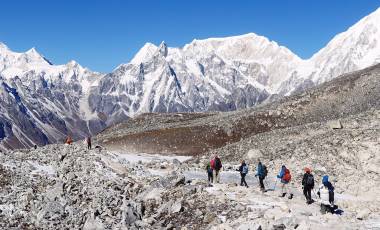
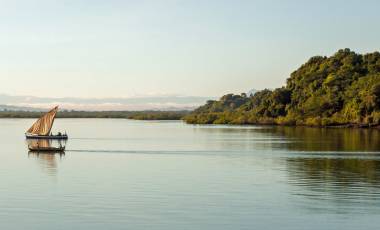
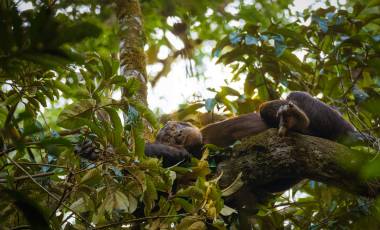
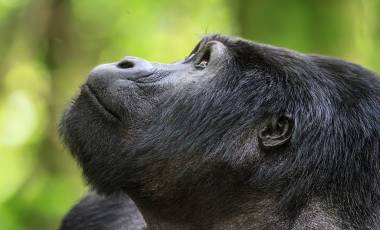
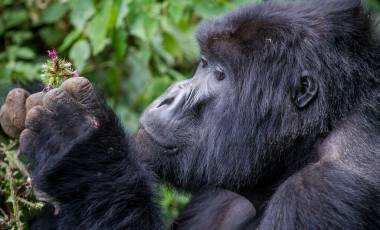
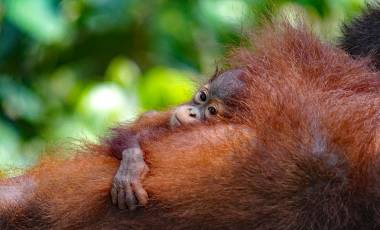
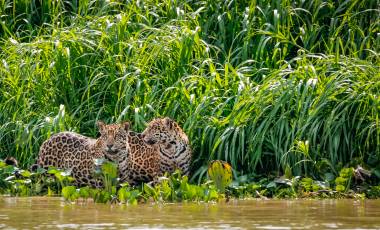
See below the trips on which we are promoting and supporting the use of iNaturalist’s app and read more about Citizen Science with Exodus here.














Become an Exodus insider
Get insider tips, travel inspiration, and exclusive offers you won’t find anywhere else – sign up now!